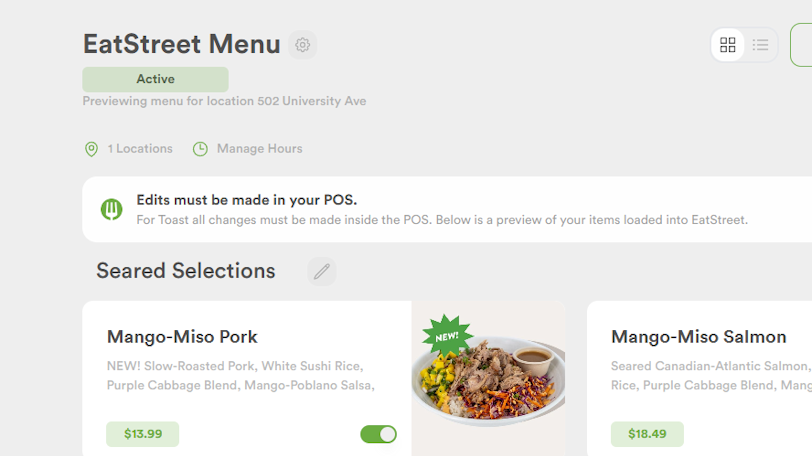
1. On the EatStreet Integreations Dashboard, Select Connect POS
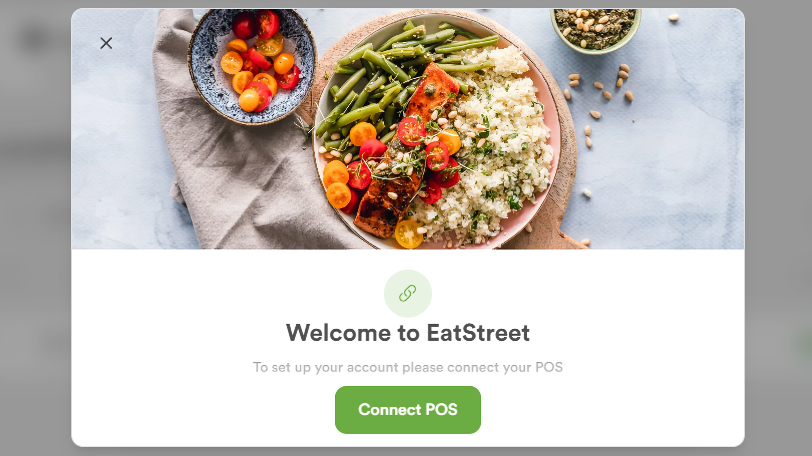
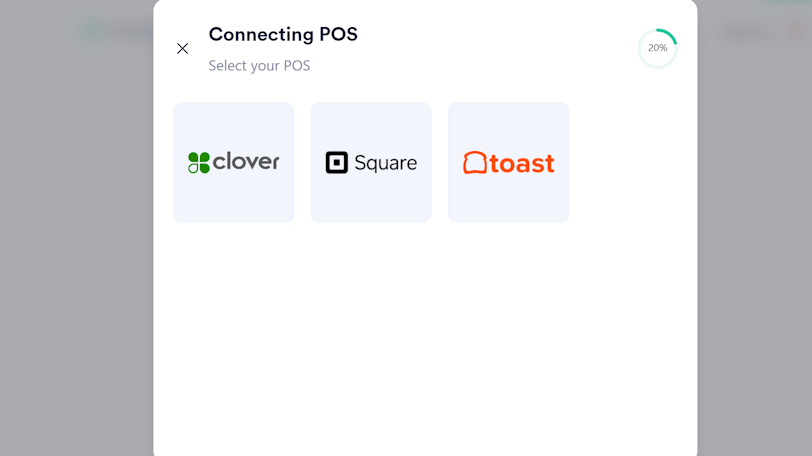
2. Select Toast
3. Click Connect POS
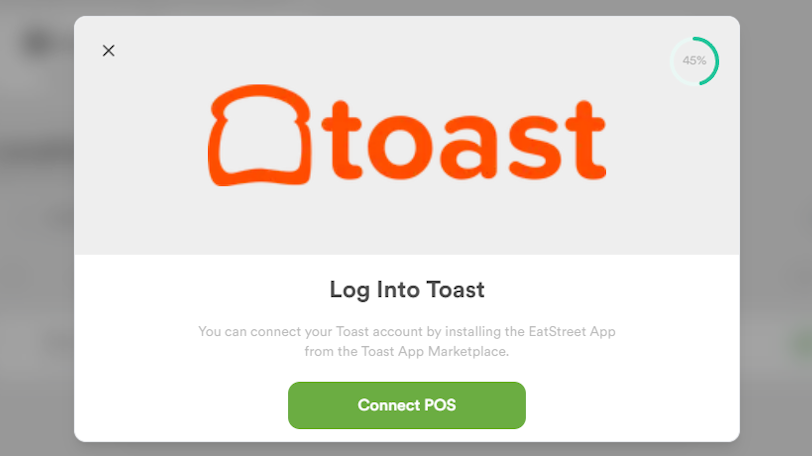
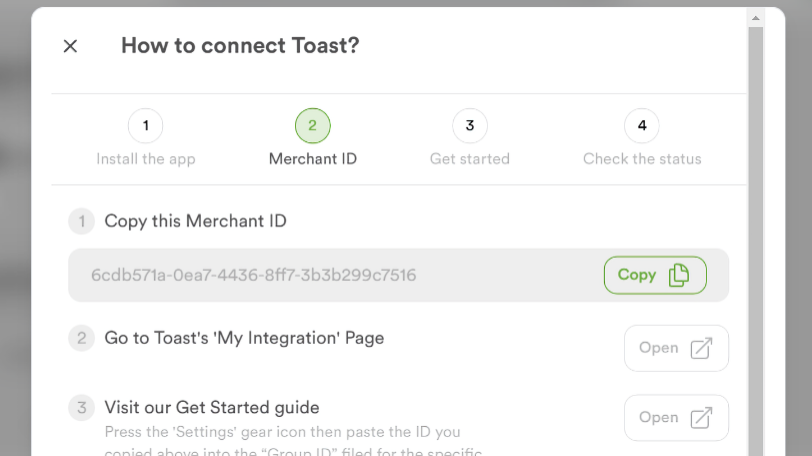
4. Copy Merchant ID
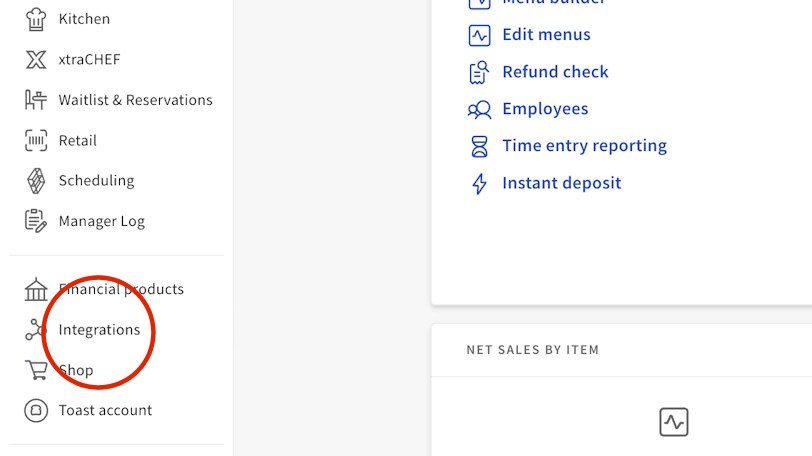
5. Go to Integrations
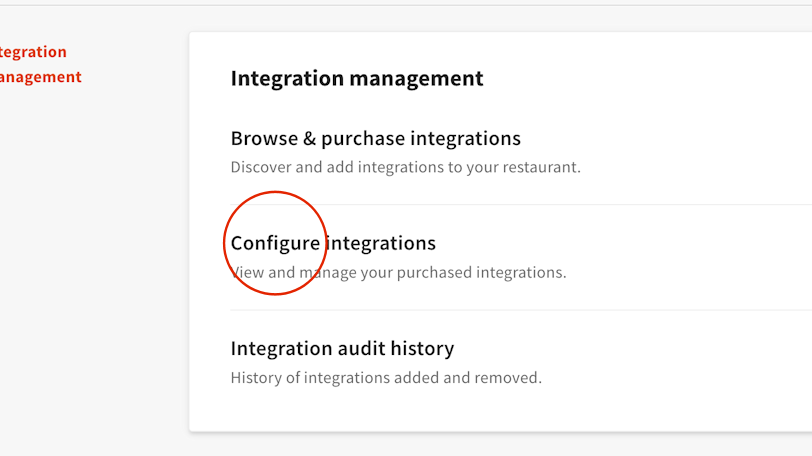
6. Click on Configure integrations
7. Open Stream Integration Settings
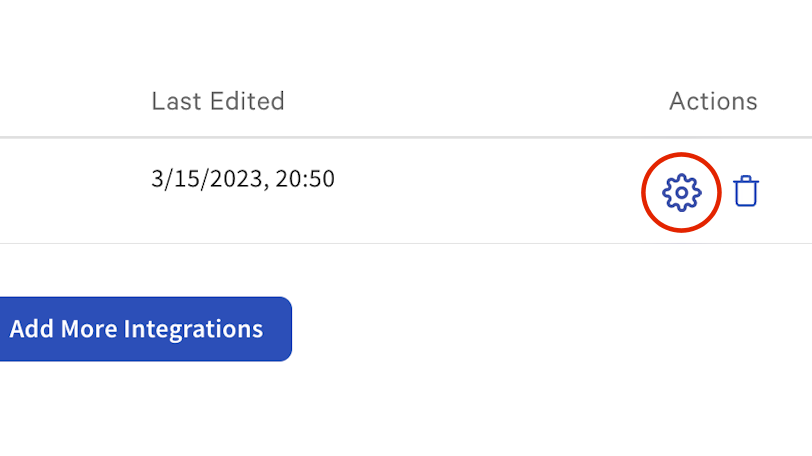
8. Paste Merchant ID into Group ID field
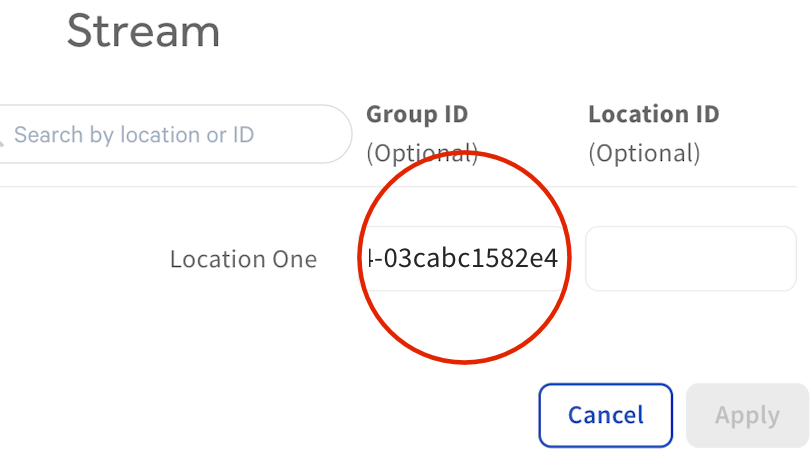
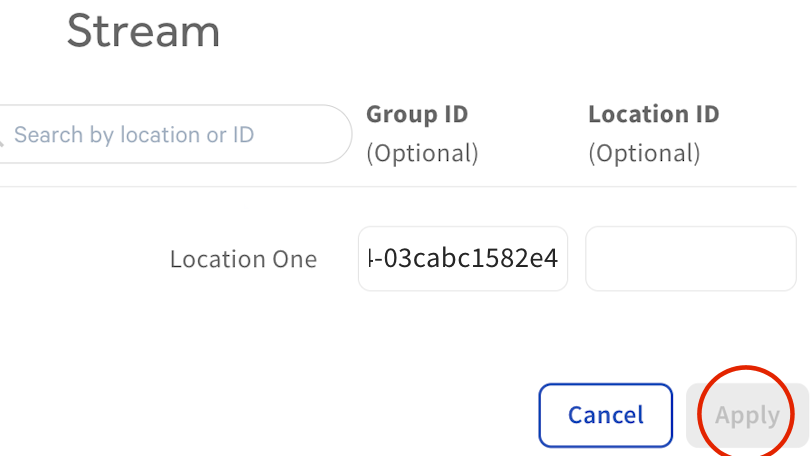
9. Click Apply
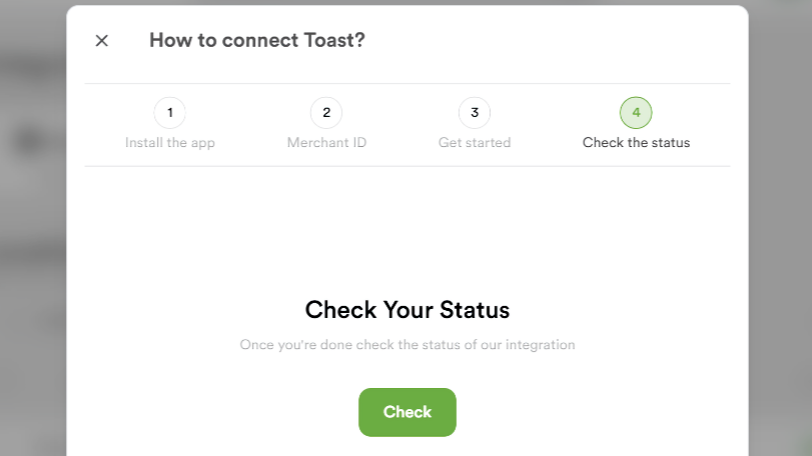
10. Go back into Stream and Check Status
Checking the status will verify the integration connect, once connected it will close the popup and you will see your menu begin to load. Due to limited integration functionality edits are not enabled for Toast locations at this time. All menu changes must be made in the point of sale.
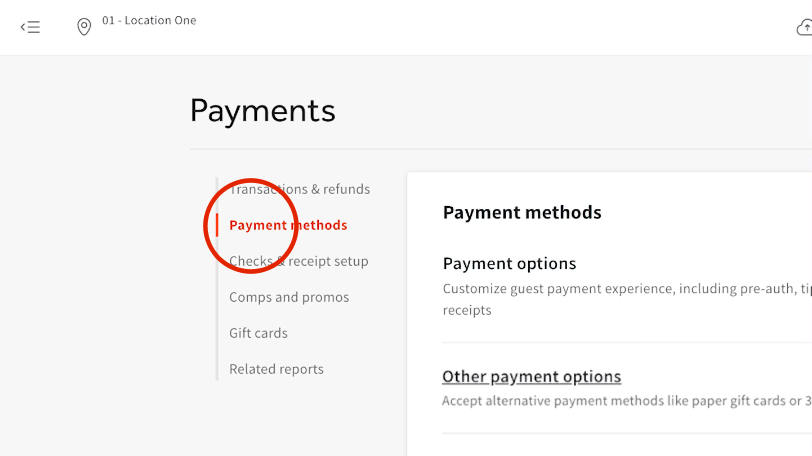
11. Go to Payments
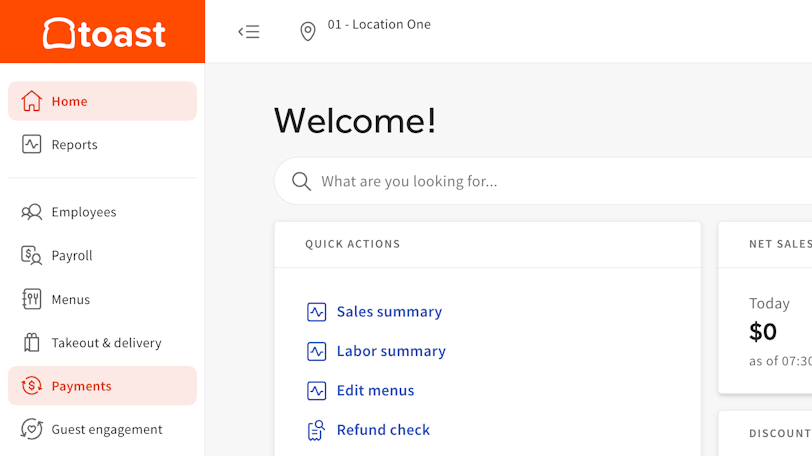
12. Click on Payment Methods
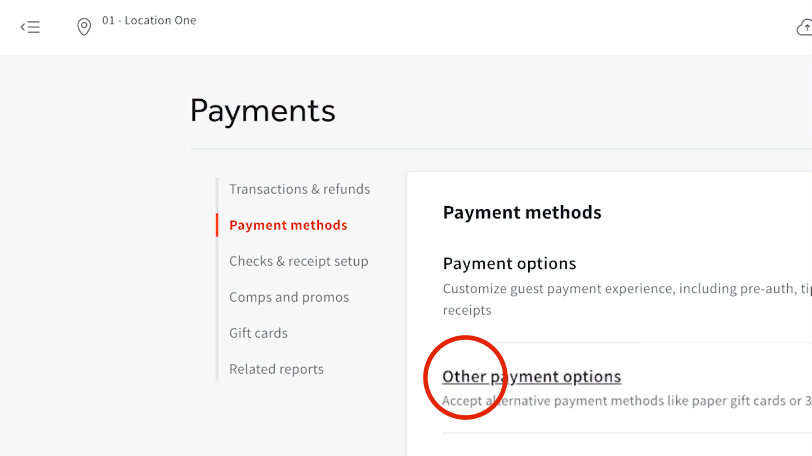
13. Click on Other payment options
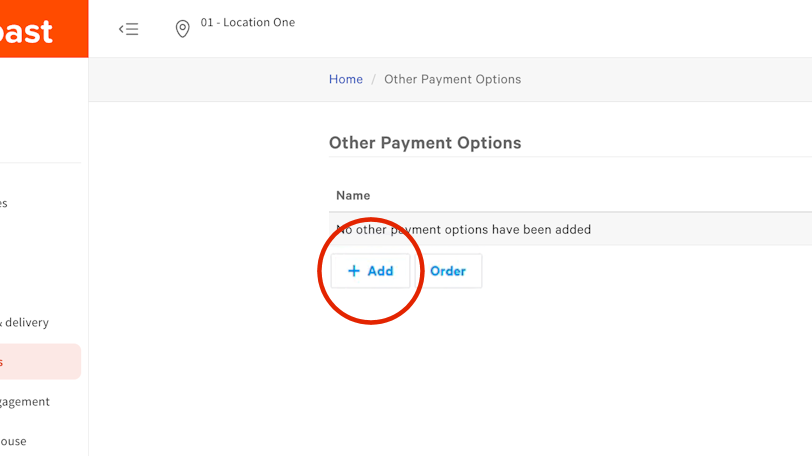
14. Click on Add
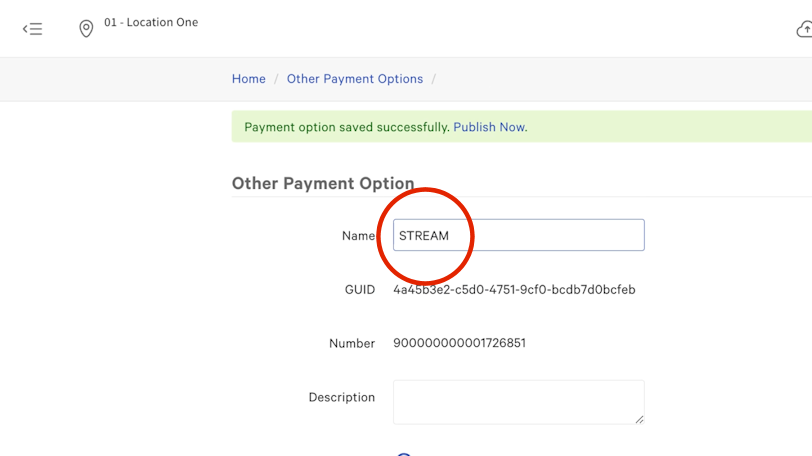
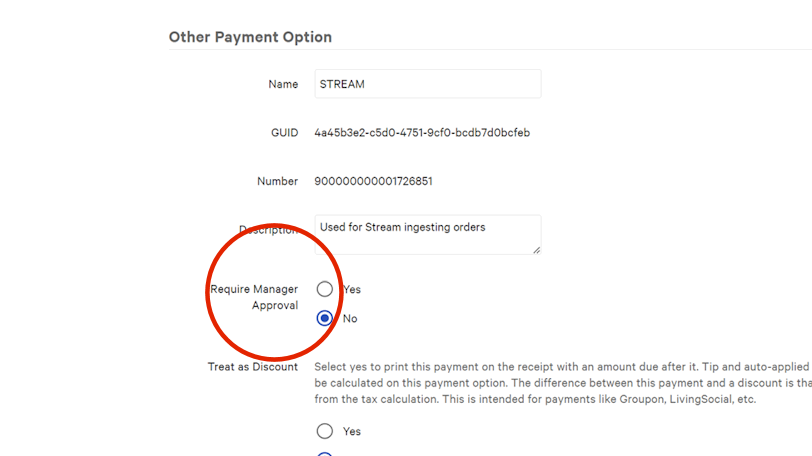
15. Name the Payment Option
The name of the payment option must be STREAM. Please use all caps as this is case sensitive. If this is not set up properly orders will fail.
16. Select No to disable manager approval
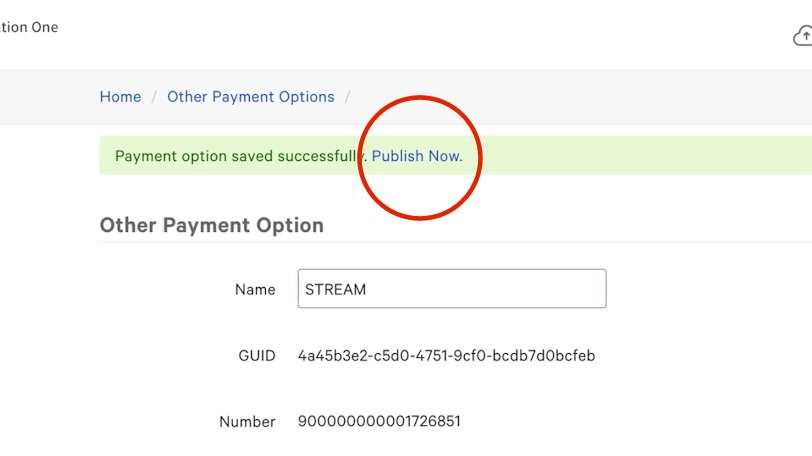
17. Click Save and Publish your changes
Publish your changes so that Stream can see these options as available.
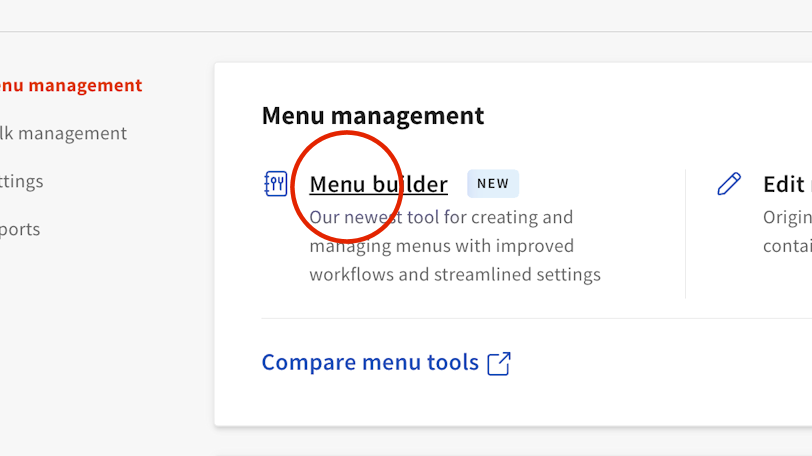
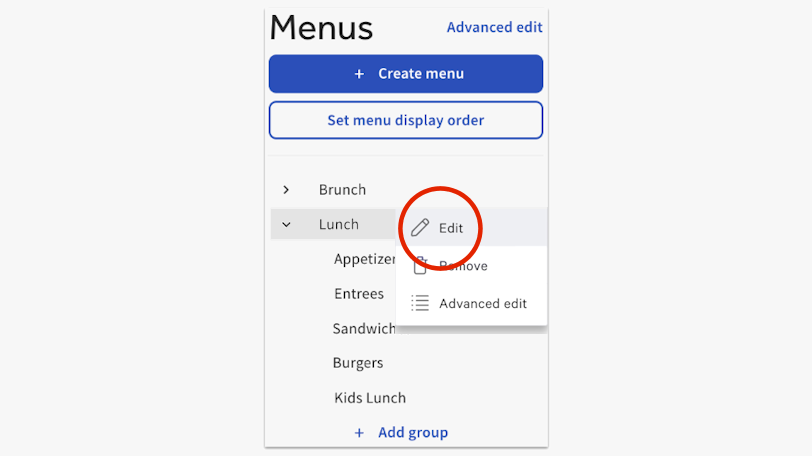
18. Go to the Menu builder
19. Select your menu
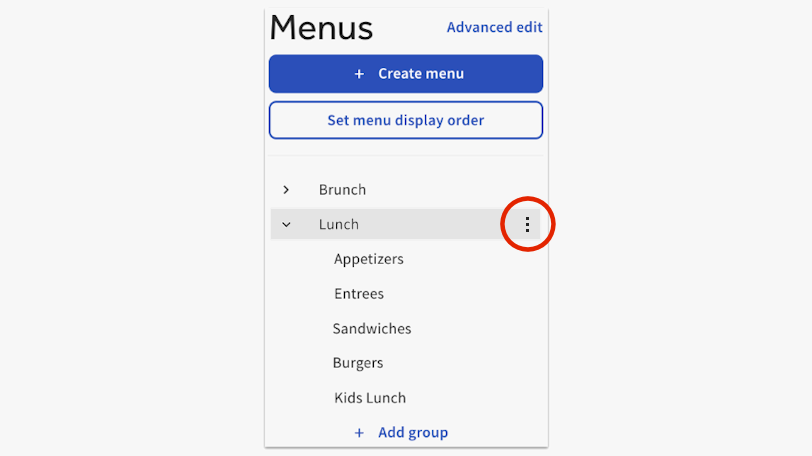
20. Click on Edit
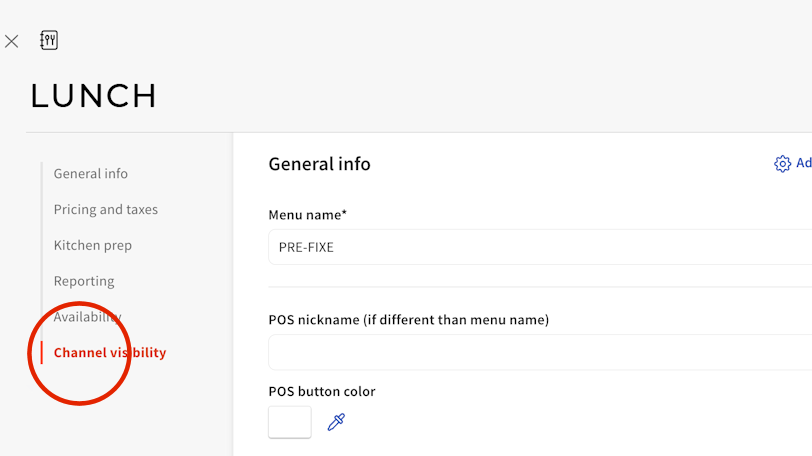
21. Go to Channel Visibility
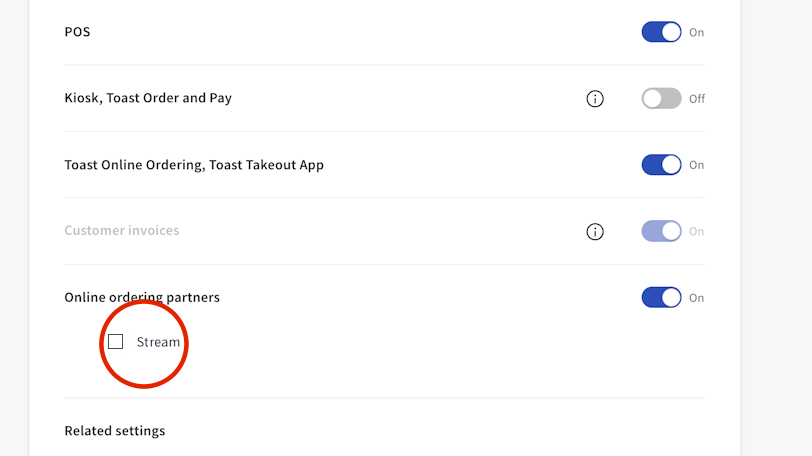
22. Select Online ordering partners – Stream
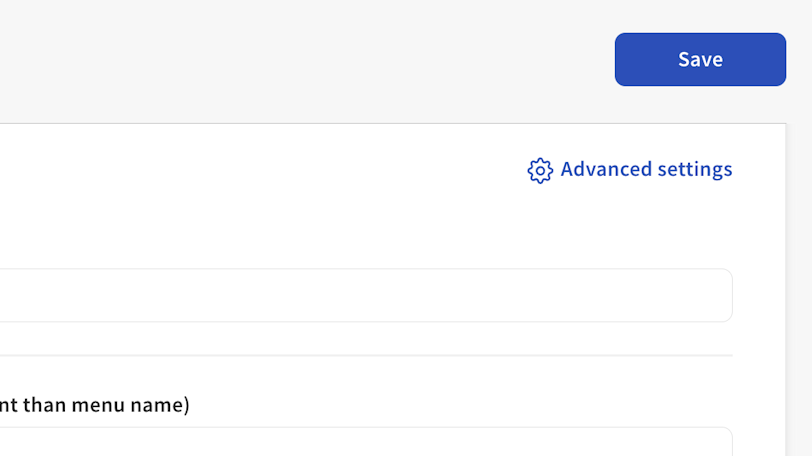
23. Save Menu & Publish all changes
24. Refresh your EatStreet Integrations account